
A scroll handler fires 50 times per second. A search input fires on every keystroke. Running expensive work on every single event is a fast route to a janky, unresponsive UI. Debounce and throttle are the two tools for limiting that — but they work completely differently, and picking the wrong one causes real bugs. This guide shows you the difference visually, builds both from scratch, and tells you exactly when to use each.
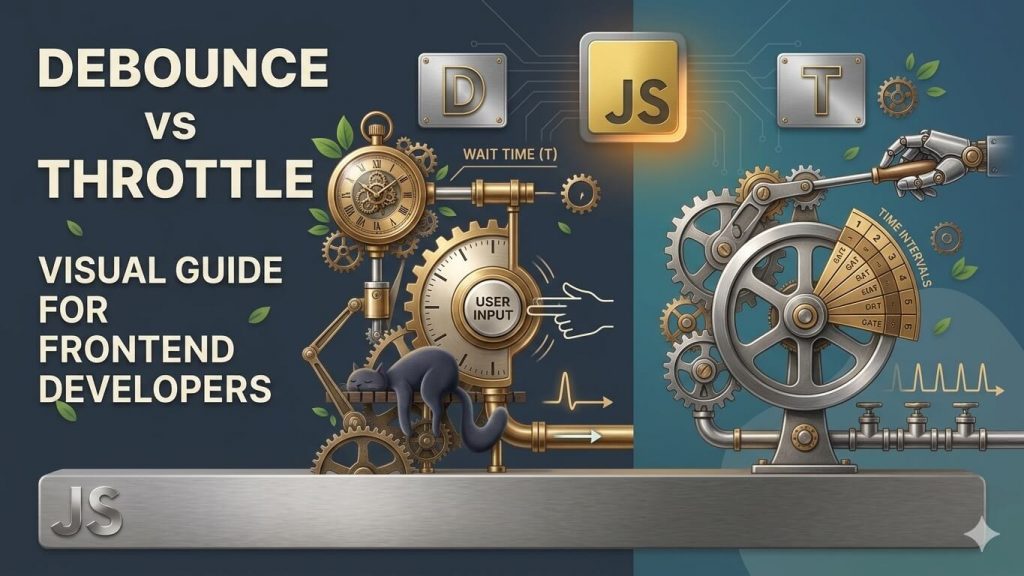
⚡ Quick Answer
Debounce: waits for events to stop firing, then runs once. Use for search inputs, form validation — anything where only the final value matters. Throttle: runs at a fixed interval no matter how many events fire. Use for scroll position tracking, progress bars, analytics — anything needing regular updates during continuous activity. requestAnimationFrame: use instead of throttle for anything directly changing visual properties — it syncs with the browser paint cycle for smoother results.
📋 Table of Contents
- The Problem: Events Fire Way Too Often
- What Is Debounce?
- What Is Throttle?
- Visual Demo — See the Difference Live
- Building Debounce from Scratch
- Building Throttle from Scratch
- React Hooks — useDebounce and useThrottle
- When to Use requestAnimationFrame Instead
- The Decision Table
- Common Pitfalls
- FAQ
The Problem: Events Fire Way Too Often
Browser events don’t care about your performance budget. A user typing in a search box fires the input event on every single keypress. A user scrolling fires the scroll event 50–100 times per second. A user resizing their browser fires resize continuously throughout the drag.
If your event handler does anything expensive — an API call, a layout recalculation, a complex DOM update — running it on every single event will make your page feel laggy and unresponsive.
Imagine your friend keeps pressing the lift button 20 times before the lift arrives. The lift doesn’t go up 20 floors — it still just goes to one floor. Debounce and throttle are your way of telling the browser: “I heard you the first time — stop firing this function 50 times per second, I’ll handle it on a schedule that actually makes sense.”
What Is Debounce?
Debounce delays execution until after a quiet period. Every time the event fires, it resets a timer. The function only runs once that timer completes without being reset — meaning events have stopped firing for the specified duration.
Think of it as: “wait until they’ve finished, then act.”
A lift door that keeps re-opening every time a new person walks toward it. It only closes — and moves — after nobody new has approached for 3 seconds. Debounce is that door: it keeps resetting until there’s a quiet moment, then it executes.
Best for: search inputs (only call the API after typing stops), form validation (only validate after the user pauses), auto-save drafts, window resize recalculations where you only need the final size.
What Is Throttle?
Throttle limits how often a function can run — at most once per defined interval, regardless of how many times the event fires. If the interval is 100ms, the function runs at most 10 times per second even if the event fires 1,000 times per second.
Think of it as: “run on a schedule, no matter what.”
A security guard who lets one person through the turnstile every 5 seconds, no matter how many people are queuing. The queue (events) can grow as long as it wants — the rate of entry (function calls) stays controlled and predictable.
Best for: scroll-linked animations, tracking cursor position, progress bar updates, infinite scroll load triggers, rate-limiting analytics events
| Debounce | Throttle | |
|---|---|---|
| Core behaviour | Waits for events to stop, then fires once | Fires at a fixed interval during continuous events |
| Output while active | Zero — silent while events are incoming | Regular — fires on schedule throughout |
| Output after events stop | One final call after the quiet period | Nothing — last interval may be skipped |
| Only final value matters? | ✓ Perfect fit | ✗ Not ideal |
| Needs regular updates? | ✗ Not suitable | ✓ Perfect fit |
| Typical delay | 250–400ms for input, 150ms for resize | 100–150ms for scroll, 16ms for visual |
Visual Demo — See the Difference Live
Click or tap rapidly inside the box below. The timeline shows every raw event as a grey tick, the debounced output as a blue tick, and the throttled output as an orange tick. This is the clearest way to see how differently they behave.
Building Debounce from Scratch
The implementation is short enough to fit on a napkin, and understanding it means you’ll never need to guess what a debounce library does under the hood.
function debounce(fn, delay) {
  let timer;

  return function (...args) {
    // Every call clears the previous timer and starts a fresh one.
    // Only if the timer completes without being reset does fn() actually run.
    clearTimeout(timer);
    timer = setTimeout(() => {
      fn.apply(this, args);
    }, delay);
  };
}

// Usage: search input that only calls the API after 300ms of quiet
const handleSearch = debounce((query) => {
  fetchResults(query);
}, 300);

searchInput.addEventListener('input', (e) => handleSearch(e.target.value));fn.apply(this, args) calls the original function with the correct this context and all the arguments that were passed in. Using apply (instead of just fn(...args)) means the debounced wrapper preserves this correctly when the debounced function is used as a method on an object — important if you’re debouncing class methods or event handlers that rely on this.Debounce with a leading call
Sometimes you want the function to fire immediately on the first call, then ignore subsequent calls until the quiet period — like a button that responds instantly but can’t be double-triggered. This is called a “leading” debounce.
function debounce(fn, delay, { leading = false } = {}) {
  let timer;

  return function (...args) {
    const callNow = leading && !timer;
    clearTimeout(timer);
    timer = setTimeout(() => {
      timer = null;
      if (!leading) fn.apply(this, args);
    }, delay);
    if (callNow) fn.apply(this, args);
  };
}

// Fires immediately on first click, then ignores clicks for 500ms
const handleSubmit = debounce(submitForm, 500, { leading: true });
Building Throttle from Scratch
function throttle(fn, interval) {
  let lastTime = 0;

  return function (...args) {
    const now = Date.now();

    // Only run if enough time has passed since the last execution
    if (now - lastTime >= interval) {
      lastTime = now;
      fn.apply(this, args);
    }
  };
}

// Usage: scroll handler that updates a progress bar at most every 100ms
const updateProgress = throttle(() => {
  const scrolled = window.scrollY;
  const total   = document.body.scrollHeight - window.innerHeight;
  progressBar.style.width = (scrolled / total * 100) + '%';
}, 100);

window.addEventListener('scroll', updateProgress, { passive: true });passive: true on the scroll listener. Passive listeners tell the browser “this handler will never call preventDefault()” — so the browser can start scrolling immediately without waiting for your JavaScript to complete. It’s one of the simplest performance wins for any scroll handler and should be the default for any listener that only reads scroll position.React Hooks — useDebounce and useThrottle
In React, debounce and throttle need careful lifecycle handling. The debounced or throttled function must be created once — not recreated on every render — and the timer must be cleaned up when the component unmounts.
import { useState, useEffect } from 'react';

/**
 * Returns a debounced copy of `value` that only updates
 * after the user has stopped changing it for `delay` ms.
 * Ideal for search inputs: pass the raw input value in,
 * use the returned debounced value to trigger API calls.
 */
export function useDebounce<T>(value: T, delay: number): T {
  const [debouncedValue, setDebouncedValue] = useState<T>(value);

  useEffect(() => {
    const timer = setTimeout(() => setDebouncedValue(value), delay);

    // Cleanup: clear the timer when value changes before delay completes
    return () => clearTimeout(timer);
  }, [value, delay]);

  return debouncedValue;
}

// Usage in a search component
function SearchInput() {
  const [query, setQuery] = useState('');
  const debouncedQuery = useDebounce(query, 300);

  // Only fires when typing has paused for 300ms
  useEffect(() => {
    if (debouncedQuery) fetchResults(debouncedQuery);
  }, [debouncedQuery]);

  return <input value={query} onChange={e => setQuery(e.target.value)} />;
}
import { useCallback, useRef } from 'react';
/**
* Returns a throttled version of `fn` that runs at most
* once per `interval` ms. Stable across renders — the
* returned function reference never changes.
*/
export function useThrottle<T extends (...args: any[]) => void>(
fn: T,
interval: number
): T {
const lastTimeRef = useRef<number>(0);
const fnRef = useRef(fn);
// Keep fnRef current without changing throttled identity
fnRef.current = fn;
return useCallback((...args) => {
const now = Date.now();
if (now - lastTimeRef.current >= interval) {
lastTimeRef.current = now;
fnRef.current(...args);
}
}, [interval]) as T;
}
// Usage: scroll handler that updates position at most every 100ms
function ScrollTracker() {
const handleScroll = useThrottle(() => {
setScrollY(window.scrollY);
}, 100);
useEffect(() => {
window.addEventListener('scroll', handleScroll, { passive: true });
return () => window.removeEventListener('scroll', handleScroll);
}, [handleScroll]);
}When to Use requestAnimationFrame Instead
For anything that directly changes visual properties — moving an element, updating a CSS transform, animating opacity based on scroll position — a millisecond-based throttle is the wrong tool. It runs on an arbitrary timer that has no relationship to when the browser is actually going to paint the next frame.
requestAnimationFrame fixes this. It fires your callback exactly once per browser paint cycle — typically 60 times per second on a 60Hz display — and never more often than the screen can actually show.
// ❌ Millisecond throttle: runs on an arbitrary timer,
//    may run between frames or skip frames unpredictably
window.addEventListener('scroll', throttle(() => {
  el.style.transform = `translateY(${window.scrollY * 0.5}px)`;
}, 16));

// ✅ rAF throttle: syncs exactly with browser paint cycles — smooth
let ticking = false;

window.addEventListener('scroll', () => {
  if (ticking) return;    // already queued for the next frame

  requestAnimationFrame(() => {
    el.style.transform = `translateY(${window.scrollY * 0.5}px)`;
    ticking = false;    // ready for the next scroll event
  });

  ticking = true;
}, { passive: true });Debounce — only the final value matters (search, validation, auto-save)
Throttle — regular non-visual updates at a controlled rate (analytics, API rate-limiting)
requestAnimationFrame — visual updates synced with browser paint (animations, parallax, scroll-linked transforms)
The Decision Table
| Situation | Use | Recommended delay |
|---|---|---|
| Search input — call API as user types | debounce | 300–400ms |
| Form validation — validate on pause | debounce | 250–300ms |
| Auto-save draft while editing | debounce | 1000–2000ms |
| Window resize — recalculate layout | debounce | 150–200ms |
| Scroll progress bar or reading indicator | throttle | 100ms |
| Infinite scroll — trigger data load | throttle | 200ms |
| Analytics — track scroll depth | throttle | 500–1000ms |
| Rate-limit API calls during drag | throttle | 100–200ms |
| Parallax / scroll-linked transform | requestAnimationFrame | ~16ms (60fps) |
| Sticky header opacity on scroll | requestAnimationFrame | ~16ms (60fps) |
| Canvas animation synced with scroll | requestAnimationFrame | ~16ms (60fps) |
Common Pitfalls
- Creating the debounced/throttled function inside the event handler or React render. A new function instance is created every render, meaning the timer state is lost on every re-render. Create it once outside the component, or use
useCallback/useRefto stabilise the reference. - Forgetting to clean up timers on unmount. A debounce timer that fires after a component has unmounted will try to set state on an unmounted component. Return a cleanup function from
useEffectthat callsclearTimeout. - Debouncing a scroll-linked animation. The UI shows nothing while the user is actively scrolling — only updates after they stop. This is throttle territory.
- Throttling with too long an interval. A 500ms throttle on a progress bar means updates feel delayed and sticky. Keep scroll-related throttle intervals at 100ms or below, or switch to
requestAnimationFrame. - Not adding
passive: trueto scroll listeners. Without it, the browser has to wait for your JavaScript to finish before it can scroll — a direct cause of scroll jank. All scroll listeners that don’t callpreventDefault()should be passive. - Using a millisecond throttle for visual updates. A 16ms
setTimeoutandrequestAnimationFrameare not the same thing — rAF syncs with the actual display refresh rate and produces smoother results on variable refresh rate displays.
Frequently Asked Questions
What is the difference between debounce and throttle in JavaScript?
Debounce delays execution until after events stop firing — the function only runs once the events have been quiet for a set duration. Throttle limits execution to at most once per interval — it runs on a fixed schedule regardless of how many events fire. Use debounce when only the final value matters. Use throttle when you need regular updates during continuous events.
When should I use debounce vs throttle?
Use debounce for search inputs (call API after typing stops), form validation, auto-saving drafts, and window resize recalculations. Use throttle for scroll progress bars, infinite scroll triggers, analytics tracking, and rate-limiting API calls during drag operations. Use requestAnimationFrame instead of either for anything directly changing visual properties.
How do you implement debounce in JavaScript?
A debounce function wraps another function. Every call clears the previous timer and sets a new one. The inner function only executes when the timer completes without being reset: function debounce(fn, delay) { let timer; return function(...args) { clearTimeout(timer); timer = setTimeout(() => fn.apply(this, args), delay); }; }
How do you implement throttle in JavaScript?
A throttle function tracks the timestamp of the last execution and skips calls that arrive too soon: function throttle(fn, interval) { let lastTime = 0; return function(...args) { const now = Date.now(); if (now - lastTime >= interval) { lastTime = now; fn.apply(this, args); } }; }
When should I use requestAnimationFrame instead of throttle?
Use requestAnimationFrame when your callback directly changes visual properties — transform, opacity, position, scroll-linked animations. rAF syncs with the browser’s actual repaint cycle (typically 60fps), producing smoother results than a fixed millisecond throttle. Use millisecond throttle for non-visual tasks: analytics, API rate-limiting, non-visual state updates.
The One-Page Cheat Sheet
- Debounce: “wait until they’ve stopped.” Timer resets on every event. Fires once after quiet period. Use for search, validation, auto-save.
- Throttle: “run on a schedule.” Fires at a fixed interval throughout continuous events. Use for scroll tracking, progress bars, analytics.
- requestAnimationFrame: “sync with the screen.” Fires once per browser paint. Use for any visual property change — transforms, opacity, parallax.
- Delay guidelines: search/input 300–400ms · scroll/resize 100–150ms · visual updates use rAF
- Always add
passive: trueto scroll and touch listeners that don’t callpreventDefault() - In React: create the debounced/throttled function once — not inside render — and clean up timers in the
useEffectreturn