
Today lesson is to explains how to create an animated SVG Chart that works across browsers using Google Chart API. Currently, there are 2 ways for web designers / web developers to create HTML chart using modern web technologies, either HTML5 Canvas or SVG (Scalable Vector Graphics), and both of these have its own advantages and disadvantages. Let’s see what is the difference between these both:
| Canvas | SVG |
|---|---|
| Pixel-based, cannot be manipulated, once it’s drawn. | Vector-based, it can be scaled into any size. |
| Quick rendering, because there is no DOM nodes for the image generated by the code. | Slow rendering with DOM nodes. |
| You can save the image generated by Canvas as either png or jpg format. | Image cannot be saved. |
| No support for event handlers. | Support for event handlers. |
In this lesson, the technology we are going to adopt is SVG. The reason is unlike HTML5 Canvas, SVG is defined using an XML syntax, which means that it maintains a DOM nodes that allow us to update dynamically via scripting. So SVG is more suitable technology for creating web chart.
Please check out the demo before we start our tutorial.
Introduction to Google Chart API

The Google Chart API is the powerful chart library that provide multiple chart-types that allow us to visualize data on our website. The chart library render the chart using HTML5 / SVG technology to provide cross-browser compatibility (including VML for older IE versions) and cross platform portability to iPhone, iPad and Android devices, without requires any extra plugins installed.
Learn more on Google Chart Library.
Prepare the HTML
Let’s start our lesson today by setting up the HTML structure for the chart as shown below:
[html]
<!DOCTYPE html>
<head>
<title>A Complete Guide To Create An Animated SVG Chart | onlyWebPro.com</title>
</head>
<body>
<div id="visualization"></div>
<button id="button">View the growth</button>
</body>
</html>
[/html]
The HTML structure is very simple and straightforward, there are 2 elements needed, which is a div with id “visualization” to hold the SVG chart and a button with id “button” for us to trigger animation later.
JavaScript Section
Include Google Ajax API and Google Chart API Library into the head of the HTML document as shown.
[javascript]
<script type="text/javascript" src="https://www.google.com/jsapi"></script><script type="text/javascript">// <![CDATA[
google.load(‘visualization’, ‘1.0’, {‘packages’:[‘corechart’]});
// ]]></script>
[/javascript]
The next thing is to setup an option for the chart, and place the code inside a function called “init”:
[javascript]
<script type="text/javascript">// <![CDATA[
google.load(‘visualization’, ‘1.0’, {‘packages’:[‘corechart’]});
function init() {
var options = {
width: 400,
height: 240,
pointSize: 5,
colors: [‘#ff0000’],
animation:{
duration: 2000,
easing: ‘out’,
},
vAxis: {minValue:0, maxValue:4000}
};
}
// ]]></script>
[/javascript]
- width: The width of the chart
- height: The height of the chart
- pointSize: The size of clickable points in the chart
- colors: The color of the element in the chart
- animation settings: The animation settings such as duration and easing
- Vaxis: The minimum and maximum value of vertical axis of the chart
So far we have defined the basic settings for the chart, so let’s instruct the browser to run the init function when the page is on-load.
[javascript highlight=”04″]
<script type="text/javascript">// <![CDATA[
google.load(‘visualization’, ‘1.0’, {‘packages’:[‘corechart’]});
google.setOnLoadCallback(init);
function init() {
var options = {
width: 400,
height: 240,
pointSize: 5,
colors: [‘#ff0000’],
animation:{
duration: 2000,
easing: ‘out’,
},
vAxis: {minValue:0, maxValue:4000}
};
}
// ]]></script>
[/javascript]
We still can’t preview the chart at the moment, because we have not draw the chart yet. So let’s move on to generate the chart by adding the following line of codes after the option settings:
[javascript highlight=”19,20-36″]
<script type="text/javascript">// <![CDATA[
google.load(‘visualization’, ‘1.0’, {‘packages’:[‘corechart’]});
google.setOnLoadCallback(init);
function init() {
var options = {
width: 400,
height: 240,
pointSize: 5,
colors: [‘#ff0000’],
animation:{
duration: 2000,
easing: ‘out’,
},
vAxis: {minValue:0, maxValue:4000}
};
var data = new google.visualization.DataTable();
data.addColumn(‘string’, ‘Title’);
data.addColumn(‘number’, ‘USD’);
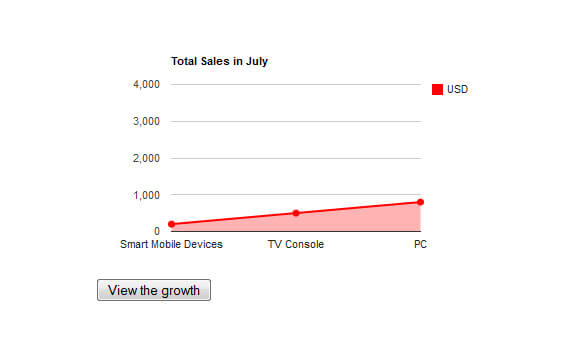
data.addRow([‘Smart Mobile Devices’, 200]);
data.addRow([‘TV Console’, 500]);
data.addRow([‘PC’, 800]);
var current = 0;
var chart = new google.visualization.AreaChart(document.getElementById(‘visualization’));
var button = document.getElementById(‘button’);
drawChart();
function drawChart() {
options[‘title’] = ‘Total Sales in ‘ + (current ? ‘August’ : ‘July’); // If current is 1 then change title to August
chart.draw(data, options);
}
}
// ]]></script>
[/javascript]
Description:
- A new DataTable class is created and assign to a variable with the name “data“. The DataTable is used to store the data of the chart.
- We have added 2 columns to the table which is the Title (String type) and USD (Number type).
- 3 pieces of data has been inserted into the DataTable as the format (Name of the product and the revenue).
- Declare a new variable called “current“. Used for condition checking, which we will discuss it later.
- Define the type of chart that we are going to use, in this case, we want an Area Chart.
- Declare a variable called “button” as a representative for us to receive the event from the button for animation purpose.
- We ask the browser to run the drawchart function, right after everything is setup successfully.
- The drawChart function, draw the SVG chart for us based on the settings that we have defined earlier. Besides, the function check and switch the title of the chart according to the value of the “current” variable that we defined.
Save your document and view it in your browser, you should see something similar as following:
Animate the Chart
Ok, now we are going to animate the chart to see the growth of the sales when the “View the growth” button is clicked. Place the following code right after the drawChart function:
[javascript]
button.onclick = function() {
current = 1;
var newValue = new Array();
newValue[0] = 3800;
newValue[1] = 1800;
newValue[2] = 3000;
data.setValue(0, 1, newValue[0]);
data.setValue(1, 1, newValue[1]);
data.setValue(2, 1, newValue[2]);
drawChart();
}
[/javascript]
Description:
- When the “View the growth” button is clicked, we run this function to allow us to load the chart with the new set of data.
- Adding 1 to the “current” variable as a parameter to switch the title of the chart in the “drawChart” function.
- Define an array of new data and set the new data to the items that we have inserted earlier, which is Smart Mobile Devices, TV Console and PC with setValue() method.
- The setValue() method requires 3 parameters, setValue(rowIndex, columnIndex, value).
- Lastly, we redraw the chart with the new data by running the drawChart function.
Save your document, view it in browser and press the button to see how is the animation done.
Last But Not Least
This is just a guide for you to get the overview idea in creating an animated SVG web chart, so please visit Google Chart API Website and read through the documentation before you create your own SVG Chart.